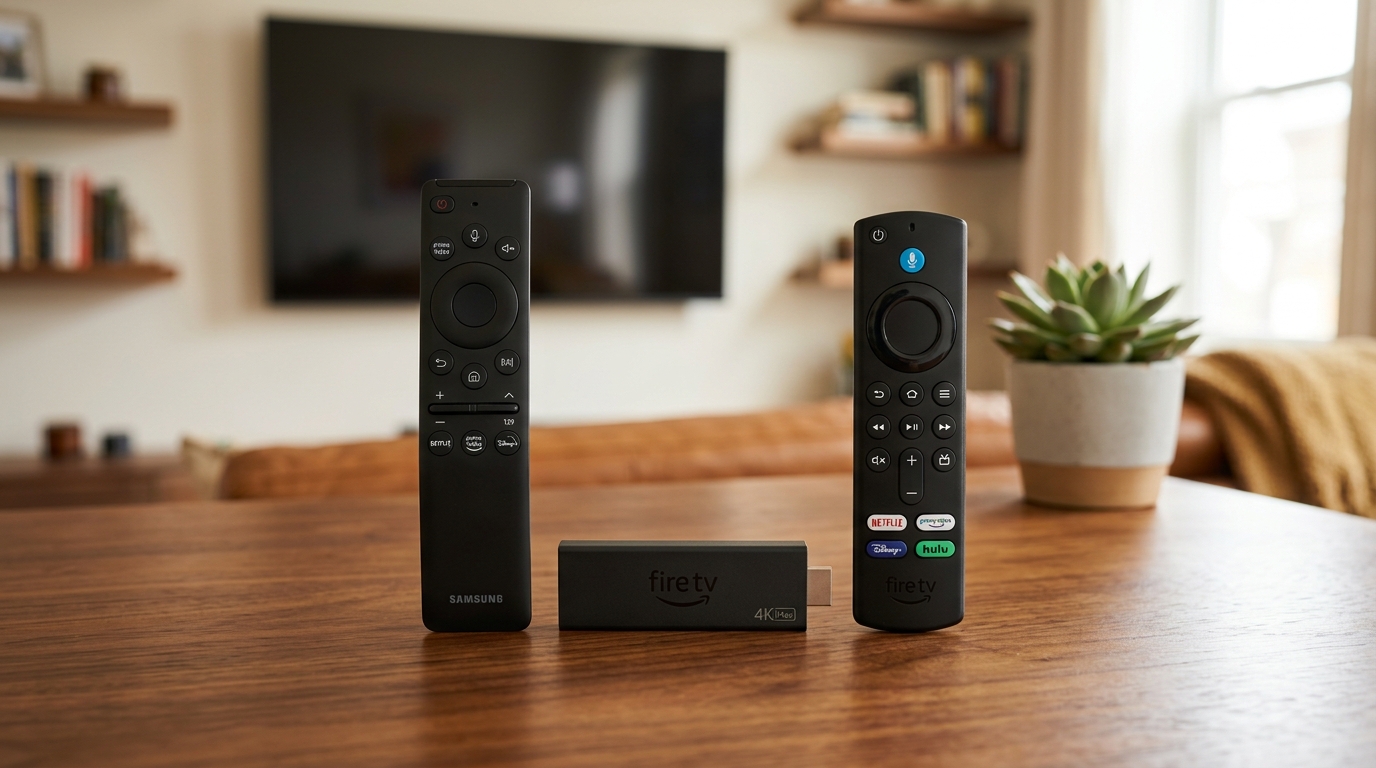
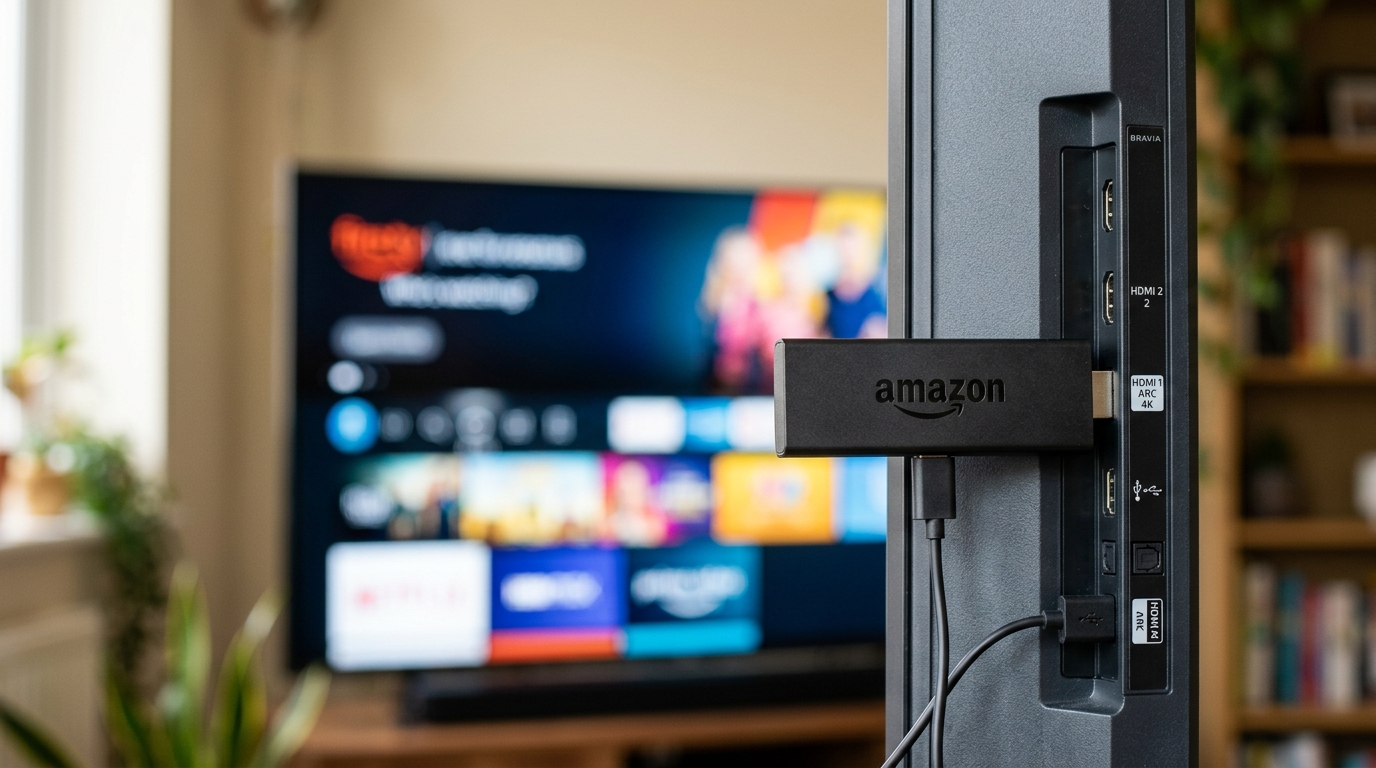
A Fire TV Stick is the most common way our customers watch, largely because it turns any television with an HDMI port into a smart one for very little money. If you are also setting up other screens, check our complete device guide.
Before you plug anything in
- A Fire TV Stick, Cube or Fire Edition television
- An Amazon account signed in on the device
- Your activation email
- Roughly ten minutes
Installing the player
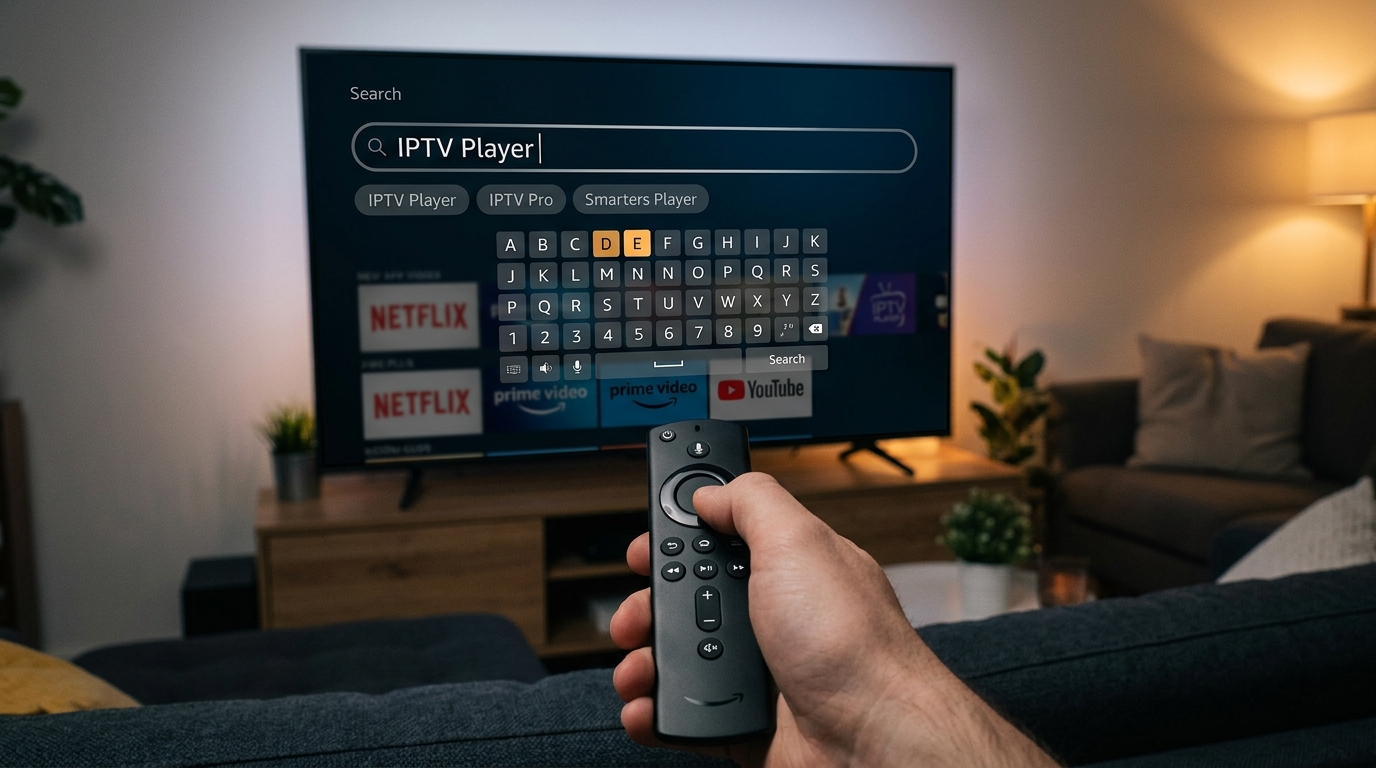
From the Fire TV home screen, open Find and then Search. Search for the player named in your activation email, select it, and choose Download. For complete app download codes and installation steps, view our Firestick setup walkthrough.
Signing in
Open the player and choose the option to add a playlist or profile. Enter the details from your email exactly. The Fire remote makes typing slow, which makes mistakes likely — go slowly, and check capital I against lowercase l before you submit.
Three settings worth changing
Free up storage
Fire Sticks ship with very little space and get unstable when it runs out. Go to Settings, Applications, Manage installed applications, and remove anything you do not use. This prevents more problems than any other single change.
Use the 5GHz band
In Settings, Network, look for a network name ending in -5G and join that instead of the 2.4GHz one. The range is shorter but the throughput is far better, which is what streaming needs.
Drop the quality on older sticks
Earlier Stick generations struggle with 4K streams and will stutter or run hot. Set the player’s quality to 1080p and the picture will be steadier than a 4K stream that keeps rebuffering.
If it stutters anyway
Restart from Settings, My Fire TV, Restart rather than pulling out the power. If the problem persists, try the same channel on your phone: if the phone plays it cleanly, the issue is the Stick or its connection rather than the service.